Registering clients
There are two ways to register a client:
-
The Register new client option in the Clients window.
-
The Add client… option in Status > Monitoring.
From the Register new client option
-
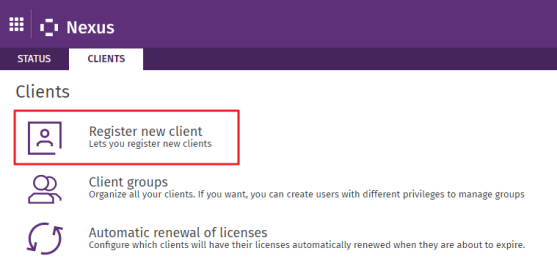
Click Clients, and then Register new client.
-
In the registration form, complete the necessary fields to register the client and click Next.
-
Select the group in which you want to include the client. If no group is configured, select the default group.
-
Use the drop-down menus to select:
-
The type of license you want to assign to the client: trial or commercial license.
-
The product.
-
The license duration: 1, 2, 3 years, 1 month.
-
The quantity of licenses to assign: If the number exceeds the number of licenses available, a warning will be displayed. .
-
Additional modules: Depending on the selected product, it may be possible to assign commercial or trial licenses for modules that offer additional security and features.
-
All the information about the modules available and their features is in section Supported products.
-
To complete the process, click Add client.
From the Add client button
-
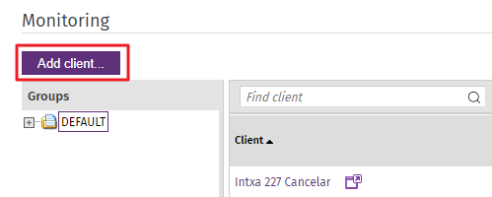
In the Monitoring section of the Status window, click Add client.
-
Complete all the fields in the registration form.
-
Use the drop-down menus to assign licenses to the client, as explained above in section From the Register new client option.
Once the process is complete, the license contract will automatically be created, and the license validity period will commence.
If assignment is not immediate, the following text is displayed on the status screen: XX licenses being assigned. View details. Clicking the View details link will display the details of the license assignments in progress.
Once licenses have been assigned to a client, they can be modified and others assigned for other Cytomic products and modules.
For more information on managing licenses, refer to chapter Product and license management.